Chapter 06 Actors & Components
#059 Attach Actor to Component
Your character grabs a sword, but the sword never leaves the floor? Attach it to the hand.
- 1:15 video
- Written lesson
- Beginner
Free for everyone from 14 Nov 2026, 00:00 CET
Let it follow
Copying the hand’s location every Tick is extra work you don’t need. An attachment follows its parent automatically.
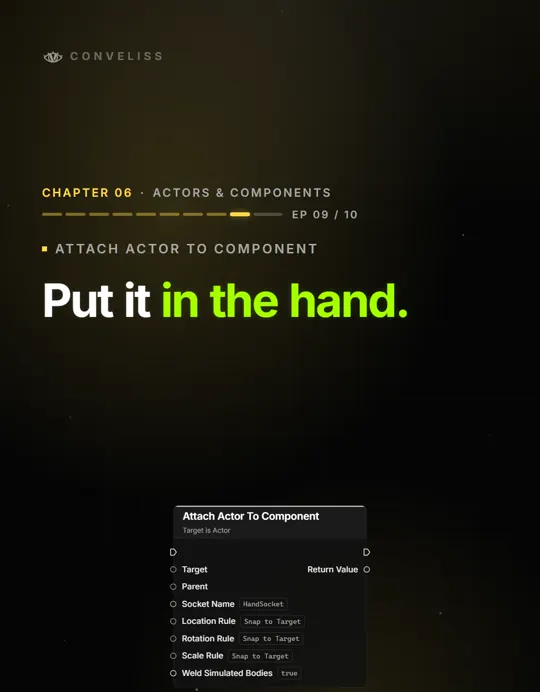
Attach Actor To Component attaches the Target’s root component to the Parent component. Socket Name picks a socket on that Parent, like a hand socket on your character’s Mesh.
Three rules decide where it lands:
- Keep Relative reuses its old offset.
- Keep World leaves it where it is.
- Snap to Target moves it onto the socket.
The Return Value tells you if the attachment succeeded. Detach From Actor releases it again.
Example: picking up a sword
On pickup, attach the sword to your character’s Mesh, at the hand socket, with all three rules on Snap to Target. The sword jumps into the hand, and now it follows every step.
With Keep World instead, it stays down on the floor, dragged along at the same distance.
Detach From Actor drops the sword, so it stops following.
Common mistakes
- Attaching a physics object. If the sword simulates physics, turn Simulate Physics off before attaching, so the parent, not physics, drives its transform.
- A misspelled Socket Name gives no error. The sword just snaps to the component’s origin.
In short
Attach once, and let it follow.
Covered in this lesson
- Attach Actor To Component
- Socket Name
- Snap to Target
- Keep World
- Keep Relative
- Detach From Actor
- Simulate Physics